Templates In detail
What are Django templates?
These are basically text files like the index.html we have created. They have special syntax that Django uses to modify the content making it dynamic.
Variables
We have already added a variable to the template.
<!DOCTYPE html>
<html lang="en">
<head>
    <meta charset="UTF-8">
    <meta name="viewport" content="width=device-width, initial-scale=1.0">
    <title>Document</title>
</head>
<body>
    <h1>Hello {{name}}</h1>
</body>
</html>
{{}}.
Let us update our view function with more context magic.
# inside tasks/views.py
def index(request):
    name = request.GET.get("name") or "Jonathan"
    profession = request.GET.get("profession") or "Software Engineer"
    return render(request, "index.html", {"name": name, "profession":profession})
Edit the HTML to include this.
<!-- inside tasks/templates/index.html -->
<!DOCTYPE html>
<html lang="en">
<head>
    <meta charset="UTF-8">
    <meta name="viewport" content="width=device-width, initial-scale=1.0">
    <title>Document</title>
</head>
<body>
    <h1>Hello {{name}}</h1>
    <p>I am a {{profession}}</p>
</body>
</html>
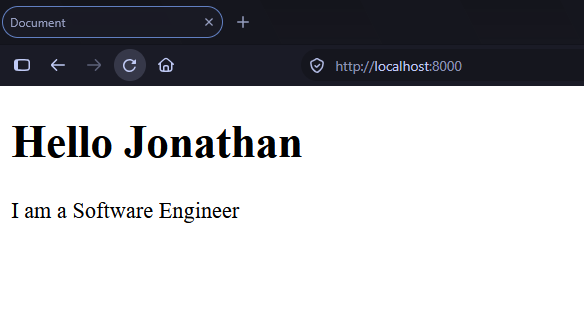
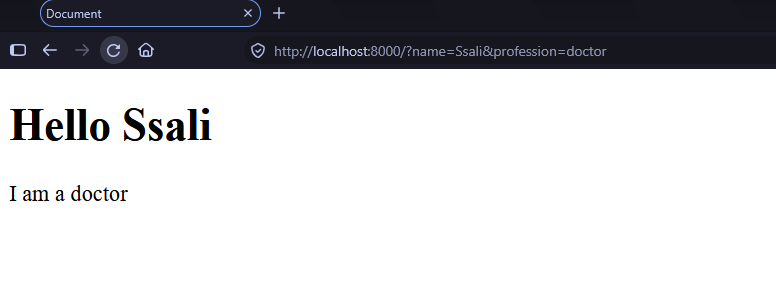
The interesting thing we have done here is to introduce query params for values that we can give to name and profession.
By default, your template looks like this.
Introducing query params makes our content more dynamic.
Template Tags
You can also perform programming logic inside your Django template using template tags. Let us start with a simple example. Template tags are always written using the {% %} syntax.
The {% for %} tag
# inside tasks/views.py

tasks = [
    {
        "id": 1,
        "name": "Listen to Music",
        "description": "Listen to some music",
        "due_date": "2026-12-12",
        "priority": "low",
        "created_at": "2026-10-07",
        "updated_at": "2026-10-07",
    },
    {
        "id": 2,
        "name": "Fix some bugs",
        "description": "Fix bugs in my code",
        "due_date": "2026-12-12",
        "priority": "high",
        "created_at": "2026-10-07",
        "updated_at": "2026-10-07",
    },
    {
        "id": 3,
        "name": "Fix some bugs",
        "description": "Fix bugs in my code",
        "due_date": "2026-12-12",
        "priority": "high",
        "created_at": "2026-10-07",
        "updated_at": "2026-10-07",
    },
]

def index(request):
    return render(request, "index.html", {"tasks": tasks})
This introduces a dummy list of data which can look like actual database data for our tasks. Let us look at how we can display these in our template.
<!DOCTYPE html>
<html lang="en">
<head>
    <meta charset="UTF-8">
    <meta name="viewport" content="width=device-width, initial-scale=1.0">
    <title>Document</title>
</head>
<body>
    <h1>Tasks</h1>
    {% for task in tasks %}
        <div>
            <h2>{{task.name}} <small>created on {{task.created_at}}</small></h2>
            <p>{{task.description}}</p>
        </div>
    {% endfor %}

</body>
</html>
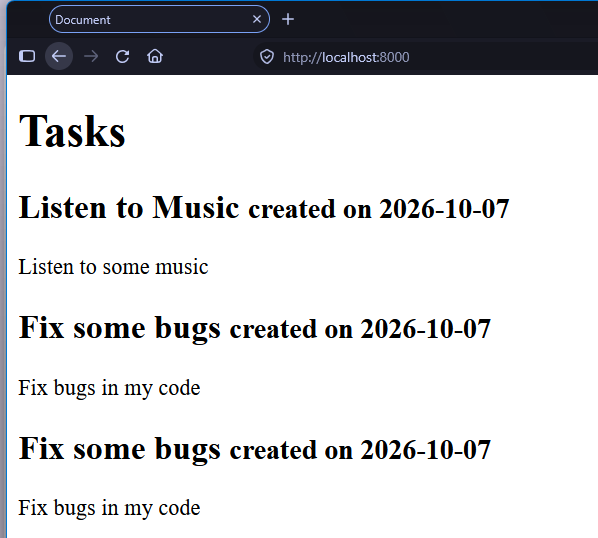
By using the {% for %} tag, We have intrduced a for loop in our template to iterate on our tasks and display the same HTML for tasks that esist in our dummy data.
The {% if %} tag
In case you want to conditionally display something, you can use the {% if %} tag with the condition you wanna check for.
Update the your view to add the title variable
# inside tasks/views.py

def index(request):
    title = "Task List"
    return render(request, "index.html", {"title": title,"tasks": tasks})
Add the conditional logic to your template
<!-- tasks/template/index.html -->
<!DOCTYPE html>
<html lang="en">
<head>
    <meta charset="UTF-8">
    <meta name="viewport" content="width=device-width, initial-scale=1.0">

    <!--- add this --->
    {% if title %}
        <title>Taskrat | {{title}}</title>
    {% endif %}

</head>
<body>
    <h1>Tasks</h1>
    {% for task in tasks %}
        <div>
            <h2>{{task.name}} <small>created on {{task.created_at}}</small></h2>
            <p>{{task.description}}</p>
        </div>
    {% endfor %}
</body>
</html>
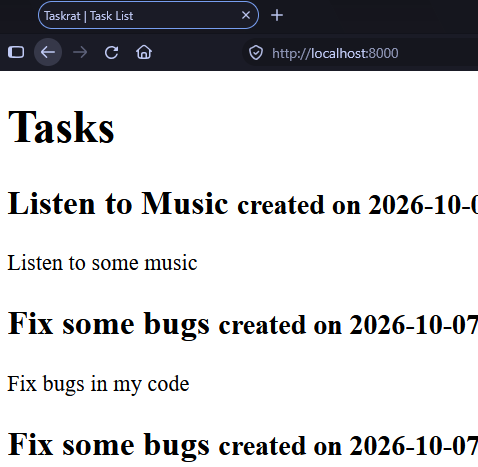
This will change our title to this.
We can also use {% else %} in situations where a condition is false.
<!-- tasks/template/index.html -->
<!DOCTYPE html>
<html lang="en">
<head>
    <meta charset="UTF-8">
    <meta name="viewport" content="width=device-width, initial-scale=1.0">


    {% if title %}
        <title>Taskrat | {{title}}</title>
    {% else %} <!--- add this --->
        <title>Taskrat</title>
    {% endif %}
</head>
<body>
    <h1>Tasks</h1>
    {% for task in tasks %}
        <div>
            <h2>{{task.name}} <small>created on {{task.created_at}}</small></h2>
            <p>{{task.description}}</p>
        </div>
    {% endfor %}
</body>
</html>
The {% now '' %} Tag
This tag will help you display current time in your template. You can also customize it to extract what you want from the current date.
Let us update our template
<!DOCTYPE html>
<html lang="en">
<head>
    <meta charset="UTF-8">
    <meta name="viewport" content="width=device-width, initial-scale=1.0">

    {% if title %}
    <title>Taskrat | {{title}}</title>
    {% else %} <!--- add this --->
    <title>Taskrat</title>
    {% endif %}

</head>
<body>
    <main>
        <h1>Tasks</h1>
        {% for task in tasks %}
        <div>
            <h2>{{task.name}} <small>created on {{task.created_at}}</small></h2>
            <p>{{task.description}}</p>
        </div>
        {% endfor %}
    </main>
    <footer>
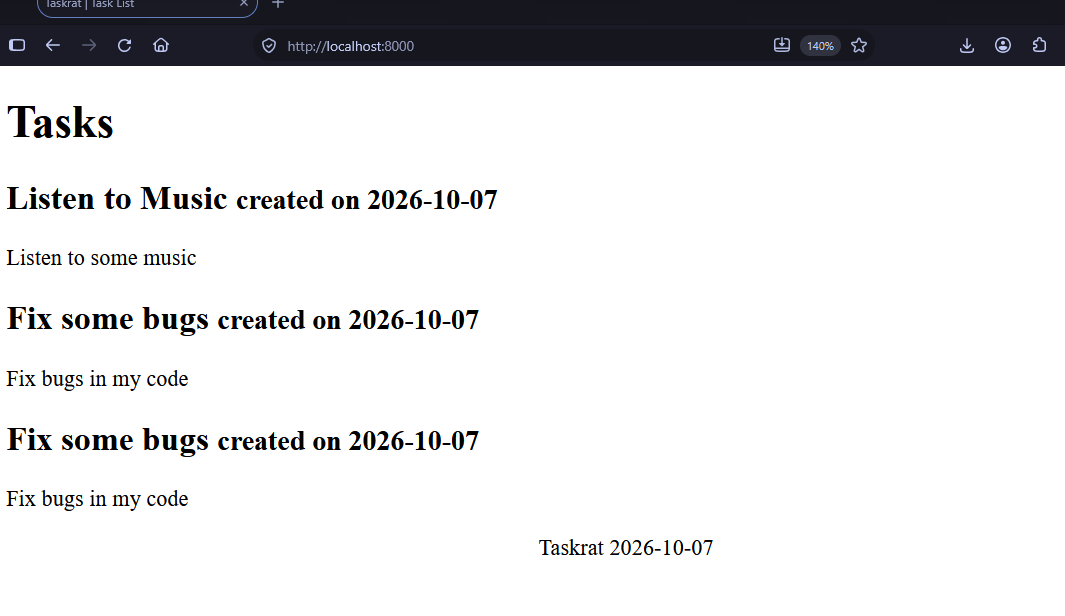
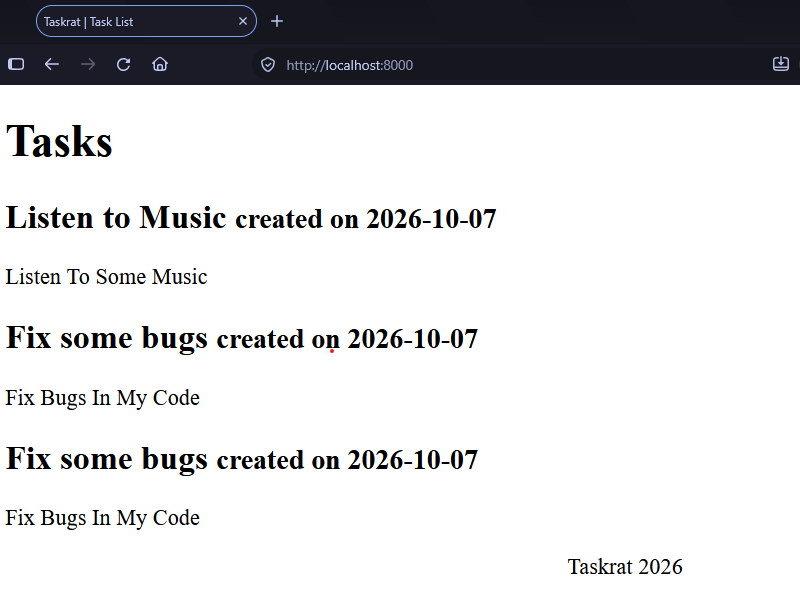
        <p align="center">Taskrat {% now 'Y-m-d' %}</p>
    </footer>
</body>
</html>
This will display the current date in our template
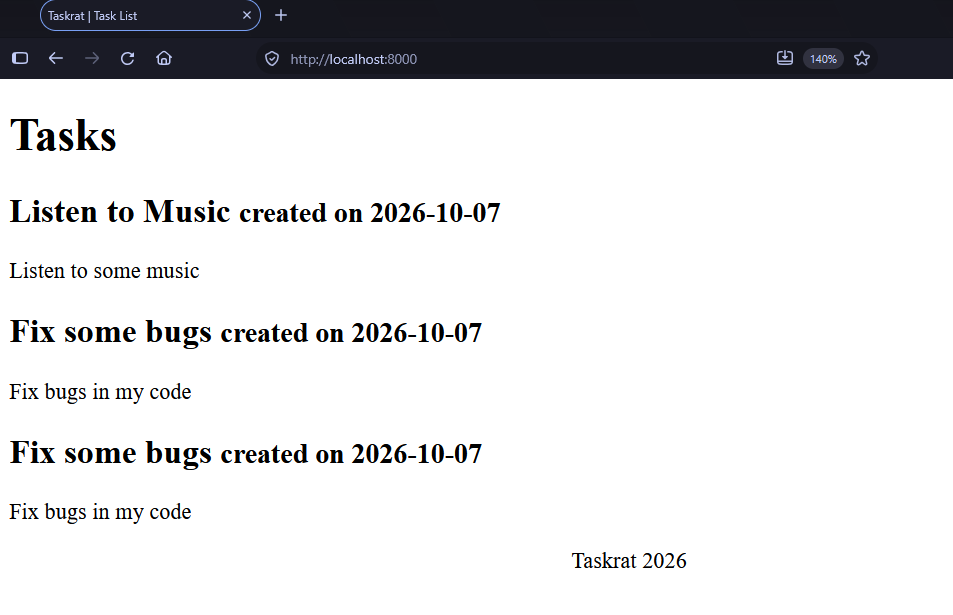
Let us extract the year out of the date with {% now 'Y' %}.
That will display the year part of the current date.
Comments with
These are used if you want some template code not to be displayed as part of the template.
    {% comment %} <!--i do not want this -->
        <p>I do not want this code displayed.</p>
    {% endcomment %}

    <main>
        <h1>Tasks</h1>
        {% for task in tasks %}
        <div>
            <h2>{{task.name}} <small>created on {{task.created_at}}</small></h2>
            <p>{{task.description}}</p>
        </div>
        {% endfor %}
    </main>
Note
There are many tags and I will spend an entire day telling you what each does if I choose to explain them all, refer to the documentation for the complete tag reference. We shall also explore more as we proceed.
Filters
Filters are used in templates to modify or format a value before displaying it. They are often used on variables with the syntax of {{var|filter}}
Here are some examples we can use
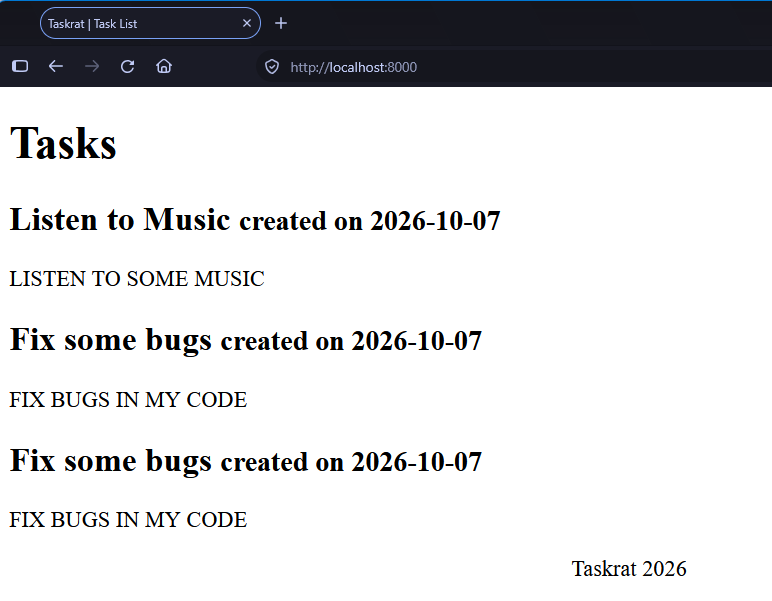
Converting a string to uppercase
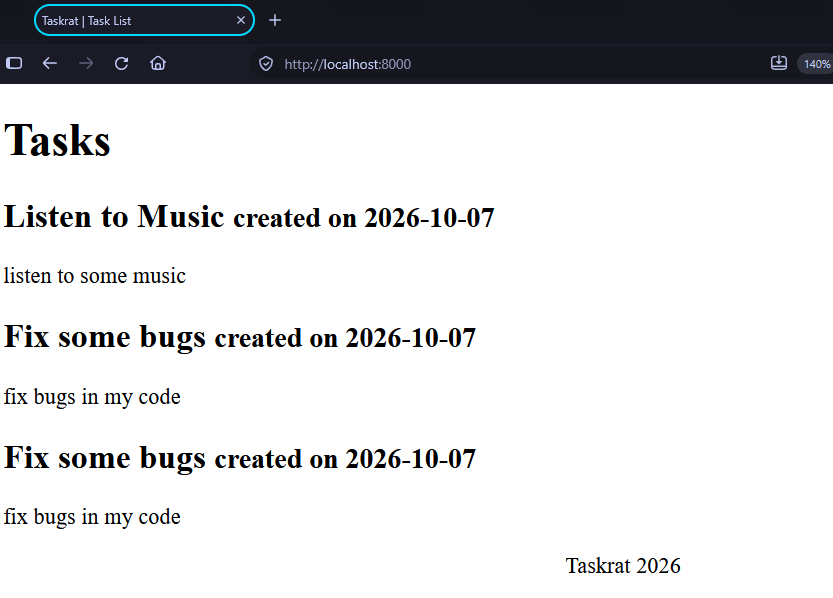
Converting a string to lowercase
Converting a string to titlecase
let us stop here and move to the next chapter. We shall talk about databases.